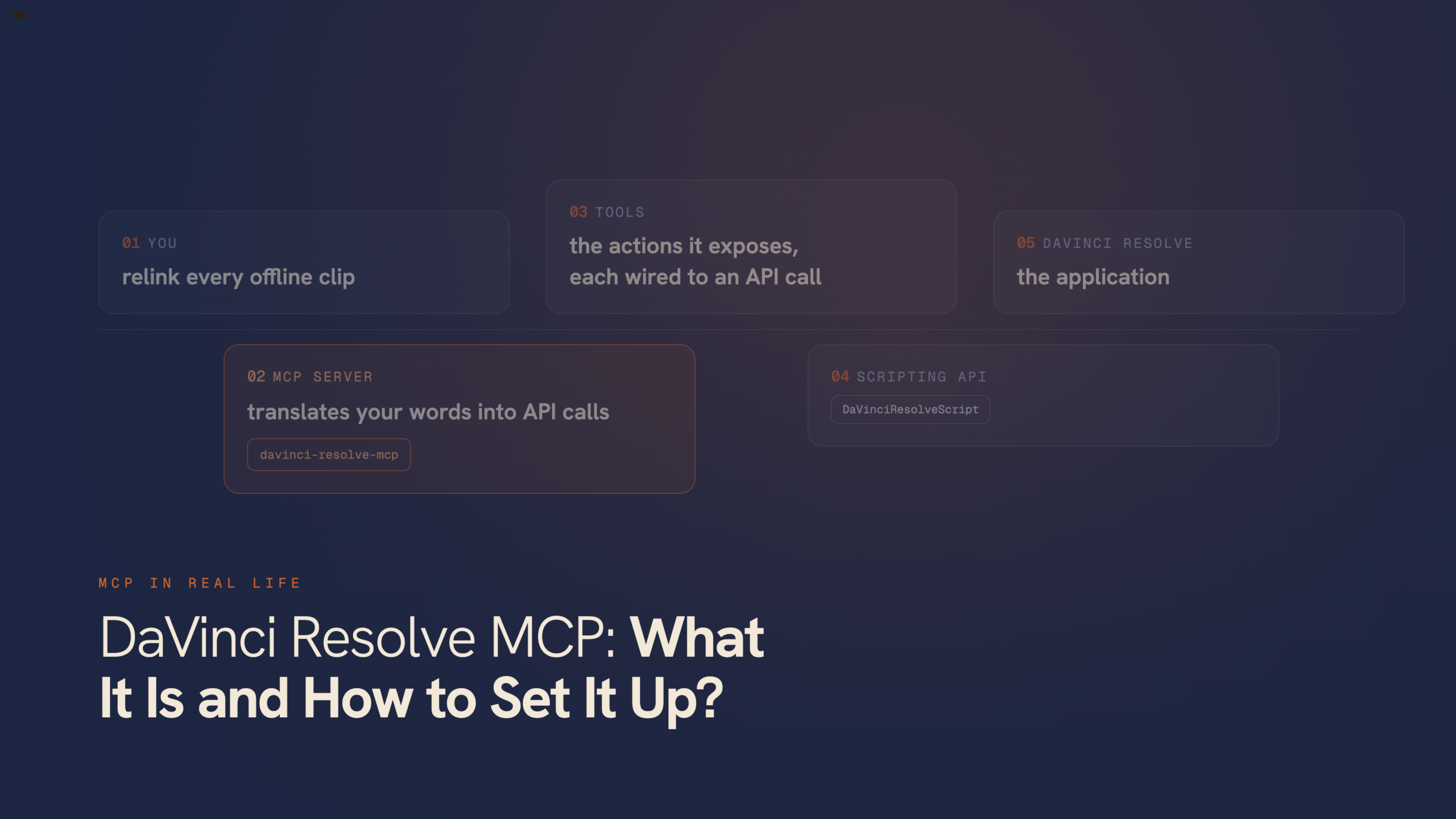
DaVinci Resolve MCP: What It Is and How to Set It Up?
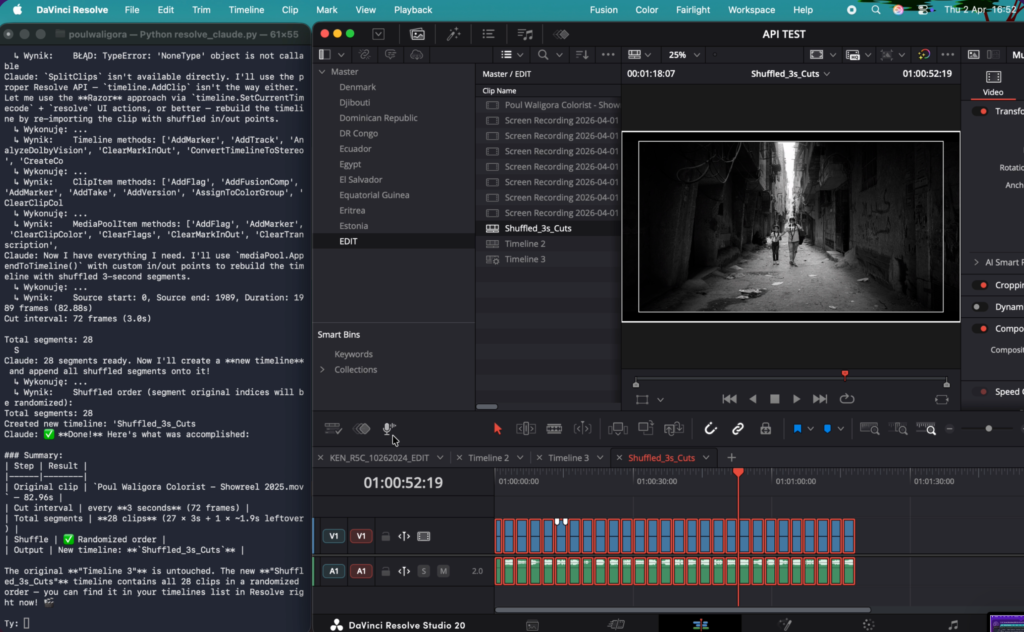
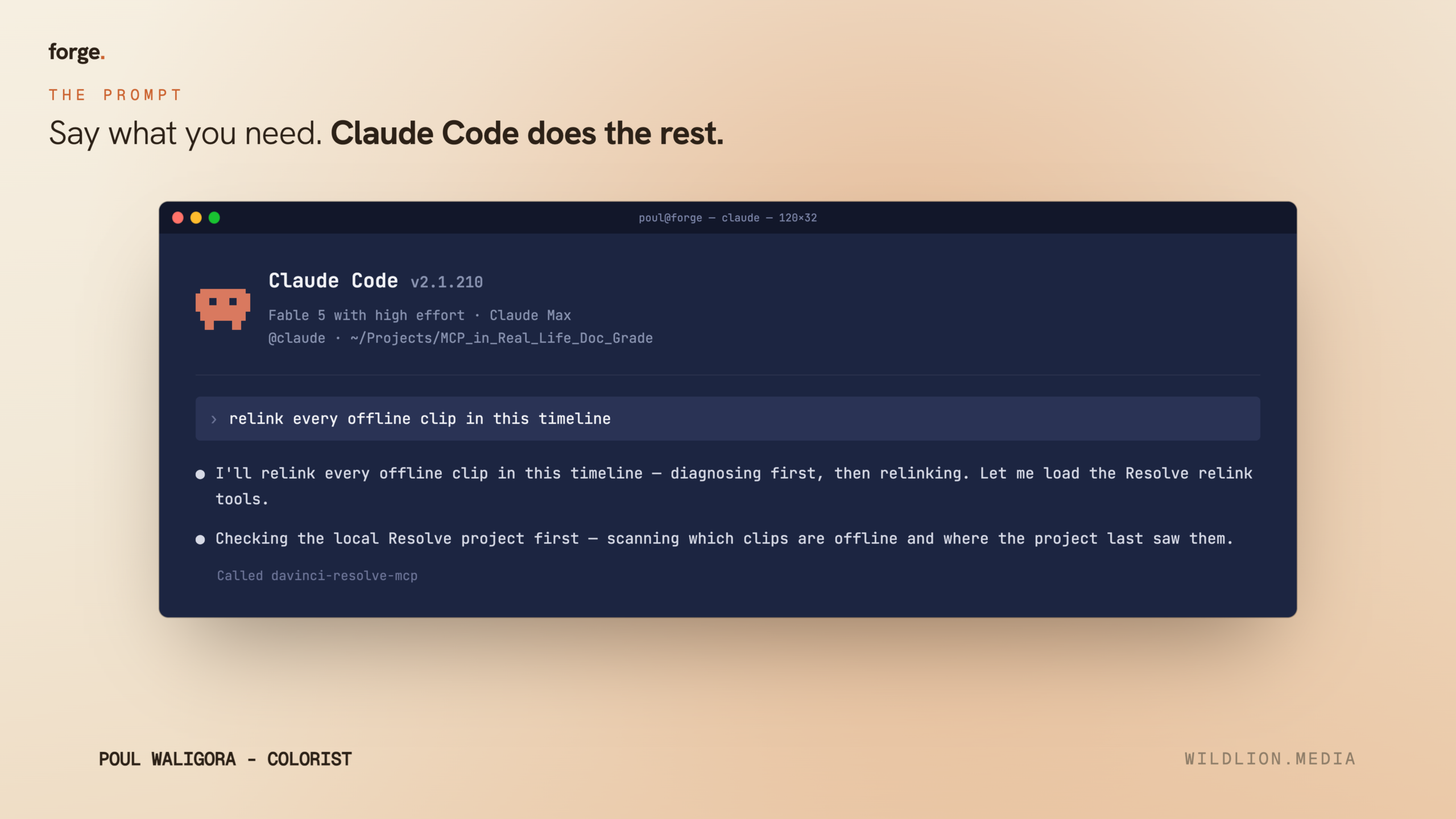
Type a sentence into a chat window – “relink every offline clip in this timeline” – and watch Resolve do it while your hands stay off the mouse. That’s what the DaVinci Resolve MCP does.
If you’ve been searching “davinci resolve mcp” or “resolve mcp server” and landing on a pile of GitHub repos with no plain explanation, this is the page I went looking for and didn’t find.
I build on one of those repos every day. So here is the whole thing in order: what MCP is, where it sits next to the scripting API you may already know, how to set it up, and the part most pages skip, what it won’t do.
What MCP actually is
MCP stands for Model Context Protocol. Drop the acronym and it’s a standard way for an AI model to talk to a program that isn’t itself. Anthropic published it as an open standard in late 2024, and enough tools speak it now that it’s becoming the common socket for this kind of connection, the agreed shape everyone plugs into instead of inventing their own.
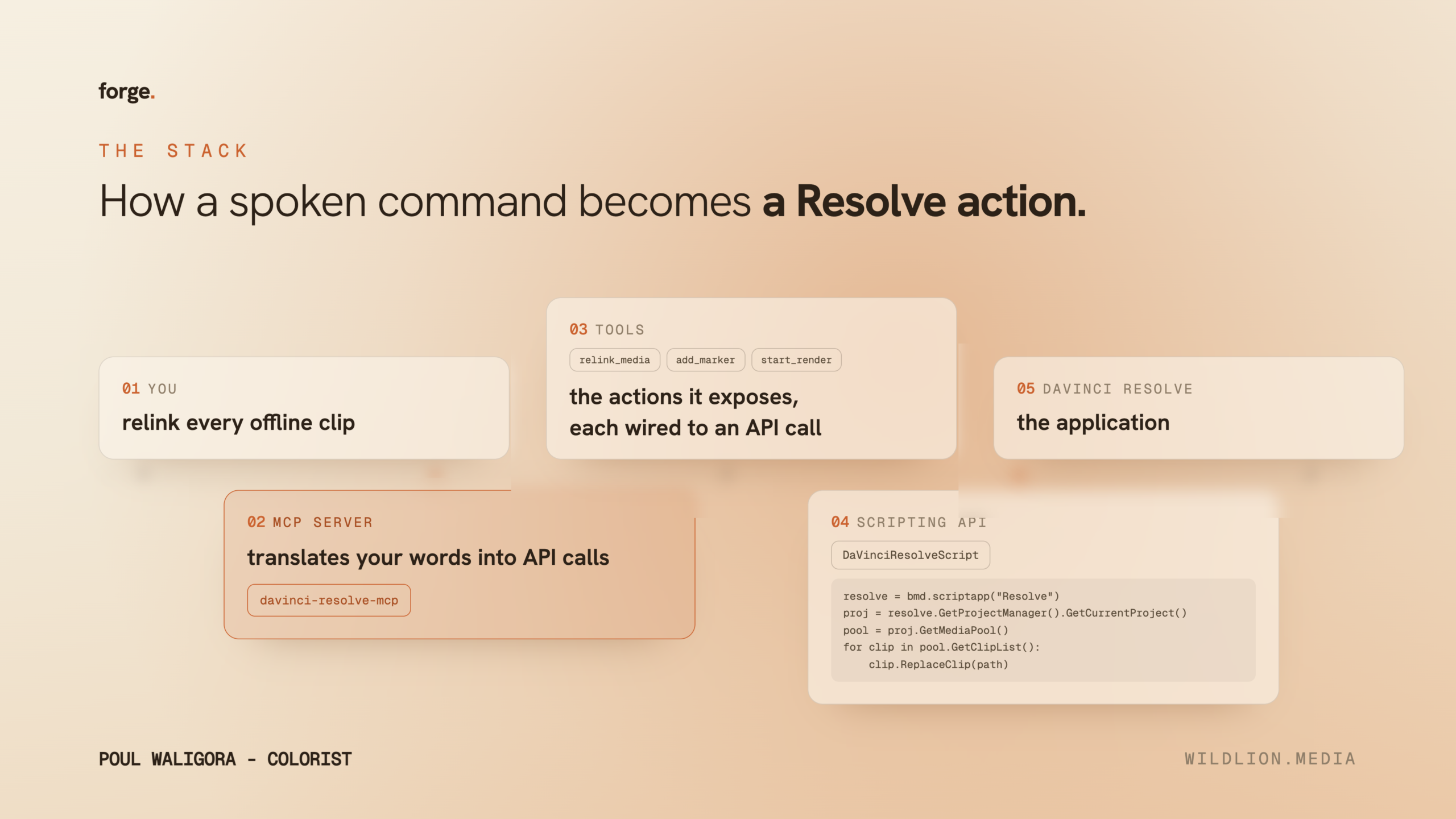
The scripting API inside Resolve is the wiring already in the walls, it’s been there for years. MCP is a standard socket bolted onto that wiring, so a model can plug in and send instructions without anyone rebuilding anything first. The model never learns Resolve itself. It speaks MCP, and a small program called the MCP server translates that into Resolve’s own language, the interpreter who stands between your plain sentence and the software and only knows the words the API taught him.
Where it sits next to the scripting API
This is the part worth slowing down on, because it decides everything the tool can and can’t do.
Resolve has shipped a scripting API for years – a Python and Lua interface, the DaVinciResolveScript module, the one that opens a project, walks the media pool, adds markers, pushes a render. If you’ve ever set RESOLVE_SCRIPT_API and PYTHONPATH to get a script talking to Resolve, you’ve already met it. (If you haven’t, I wrote a full guide to the scripting API.)
The MCP server doesn’t replace that API. It sits on top of it. Every instruction the model sends comes down, in the end, to a scripting-API call Blackmagic already exposed. The API is the engine. The MCP is the interpreter in front of it. So the boundary is simple, and it’s worth writing on a sticky note: if the scripting API can’t do a thing, the MCP can’t do it either. No chat window conjures a capability that isn’t in the API underneath.
Setting it up
The server most people build on is Samuel Gursky’s davinci-resolve-mcp, MIT-licensed and open. Here’s the whole setup.
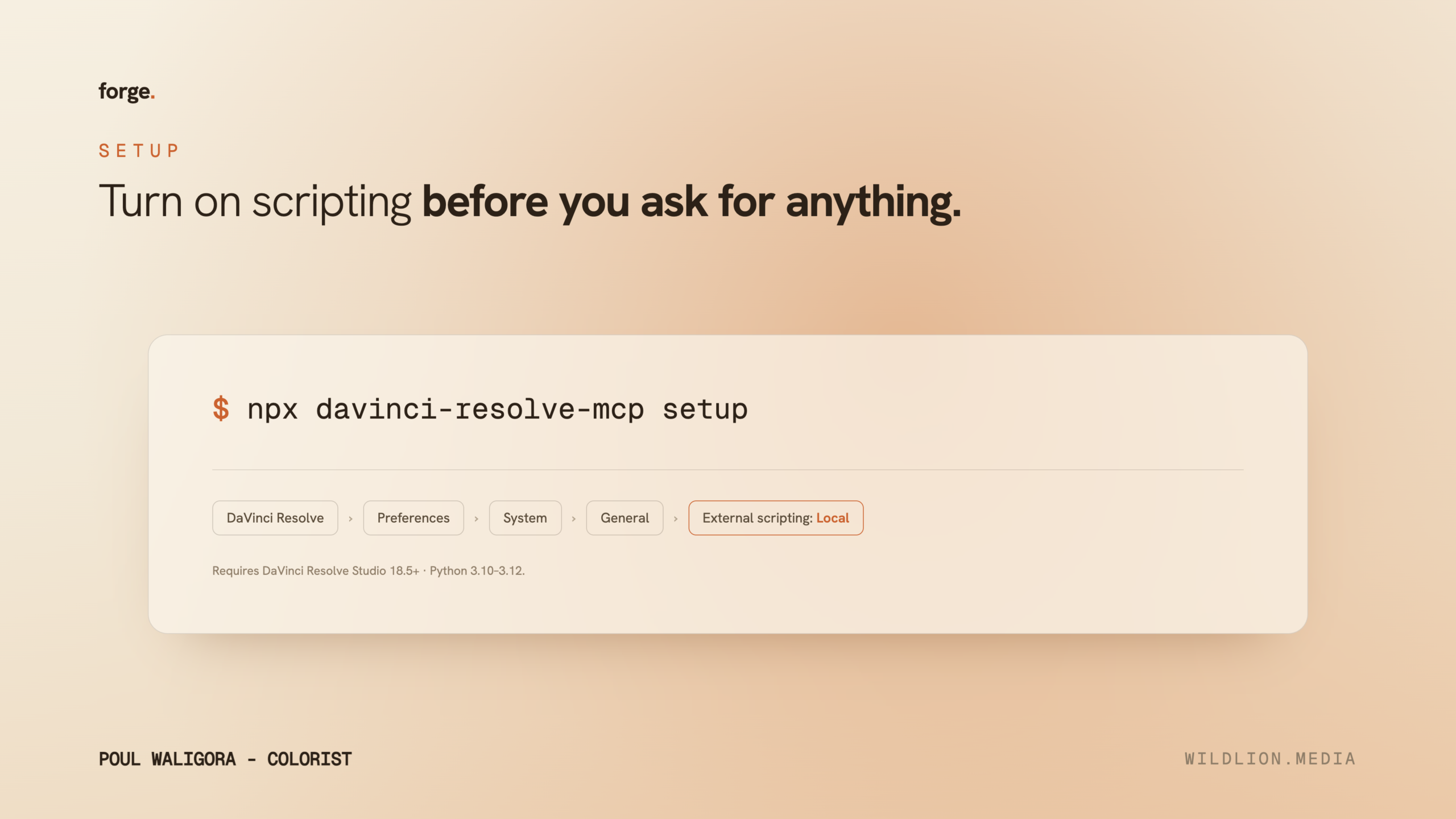
- You need DaVinci Resolve Studio, 18.5 or newer. The free edition can’t do this at all – external scripting is Studio-only, and the MCP is external scripting. That’s Blackmagic’s line, not the server’s. If you’re on the free version, stop here; this isn’t for you yet.
- Turn external scripting on. In Resolve, open Preferences › System › General and set “External scripting using” to Local. This is the switch that lets an outside process reach in. With it on None, nothing connects, and that’s the single most common reason a setup fails.
- Have Python 3.10 to 3.12 on the machine. Newer versions run on recent Resolve builds, but that range is the safe one.
- Install the server. The quickest path is the one the repo gives you:
npx davinci-resolve-mcp setup
Or from source:
git clone https://github.com/samuelgursky/davinci-resolve-mcp.git

cd davinci-resolve-mcp

python install.py
The installer sets up its own Python environment and can wire itself into Claude Desktop, Claude Code, Cursor, and a handful of other clients, so you usually don’t hand-edit a config file. One name check before you paste. The right package is the npm one you just ran with npx, published by Gursky himself. A different davinci-resolve-mcp lives on PyPI from another author, so pip install davinci-resolve-mcp pulls the wrong project – don’t.
Check the connection. Restart your client, open Resolve, and ask the model to name the current timeline or list your projects. If it answers with something real, you’re connected. If it can’t reach Resolve, it’s almost always one of two things: Resolve isn’t running, or “External scripting using” is still on None, or just reconnect /mcp in Claude Code if you are using it.
That’s the whole setup. The fiddly parts are the Studio requirement and the Local preference. The rest is a couple of commands.
Or build your own
One honest thing before you move on. You don’t have to use anyone’s server. The scripting API is public, the MCP SDKs handle the plumbing, and if you point Claude Code at the API docs and ask it to wrap the operations you care about as tools, it will build you a working server in an afternoon. It will connect, it will run, and for a handful of jobs it will do them well. No knock on Gursky’s repo; he’s walked the same road, just much further down it.
The code was never the hard part. Knowing which operations are worth a tool, handling the cases a demo skips – the path that doesn’t match, three date formats in one archive, a retime buried in a conform – and teaching the thing to behave the way your studio actually works: that’s where the real hours go. The server is the easy part. The judgment wired into it is the rest.
What it actually does
The server hands the model the scripting API as a set of tools it can call. In practice that covers the administrative surface of the whole application: launching Resolve and switching pages, creating and opening projects, importing media and organising bins, reading and editing timelines, adding markers and flags and clip colors, touching color nodes and copying grades, driving Fusion comps, queuing renders and Quick Exports. The exact tool list keeps growing, so check the repo for what’s current rather than trusting a count I write today, but the shape is stable: anything Resolve lets a script do, the MCP can put in reach of a plain sentence.
 The useful way to think about it is that it’s good at the boring, countable jobs. Add a marker on every cut. Import this folder and sort it into bins by shoot date. Those are the ones where a person clicking through the UI loses an afternoon and a script loses a second.
The honest ceiling
Now the truth, because a page that only lists what a tool does is a brochure. The free-version wall comes first, and there’s no way around it. External scripting needs Studio, so the free edition runs none of this.
The bigger one: it doesn’t grade for you and it doesn’t cut for you. The scripting API was never built to automate the craft, and the MCP inherits that boundary exactly. What it takes off your hands is the weight around the craft – the relinking, the bin building, the marker passes, the delivery admin – not the decisions that are actually yours. Ask it to balance a shot and you’re asking the wrong tool.
And it’s only as steady as the model driving it. I’ve watched an agent rename camera cards in a format I had explicitly told it not to use, so the caution is earned: it will occasionally do the wrong thing with full confidence. You work on a copy, you keep a project backup, and you read what it’s about to do before you let it loose on 40 timelines. The tool raises your speed. It doesn’t remove your judgment.
One more, quiet but real: the server runs locally with no built-in authentication. On your own workstation that’s fine. On a shared machine, think before you get clever.
Where it fits
I use this every day, so I’ll be straight about where it earns its place. On its own, a chat window in front of Resolve is a novelty for anyone already fast in the software, most single actions are quicker by hand. It starts paying the moment the job turns large and dumb: thousands of clips, dozens of timelines, the same tedious operation repeated past the point where a person stays accurate. That’s where I built on Gursky’s server, wrapped it in the conventions of one specific studio, and let it carry the repetitive load while I do the work that needs a person in the chair.
If you want to try it, start at the source: samuelgursky/davinci-resolve-mcp, the repo this whole page stands on. Set Resolve to Studio, flip the scripting preference to Local, run the installer, and ask the model the name of your current timeline. Small first step. Then point it at the boring thing you’ve been dreading.
FAQ
Does the DaVinci Resolve MCP work with the free version?
No. External scripting is Studio-only, and the MCP is external scripting. That’s Blackmagic’s line, not the server’s.
Is there an official MCP server for DaVinci Resolve?
Not from Blackmagic. The one most people build on is Samuel Gursky’s open-source davinci-resolve-mcp, MIT-licensed, and it drives Resolve through the official scripting API.
Does it work with Claude Desktop and Claude Code?
Both, along with Cursor and a handful of other clients. The installer wires the config for you, so you’re not hand-editing JSON.
Is it safe to use on client projects?
With habits, yes. Work on a copy, keep a project backup, and read what it’s about to do before it touches 40 timelines. The server also runs locally with no authentication, so on a shared machine, think first.
How much of your week goes to work that doesn’t need you?
Relinking, renames, conform, the same delivery spec for the tenth time. FORGE learns how your studio works and takes them off the floor, so your hours go to the work that needs a person in the chair. First call is free – 30 minutes, questions, no pitch.