DaVinci Resolve Python Scripting: The Complete Guide to the API
Most colorists open the Scripts menu once, find a Lua example they don’t recognise, and close it for good. Then they spend the rest of the week building render queues by hand, relinking media, and duplicating timelines for every version of every deliverable.
Resolve’s Python API can take most of that off your plate. Not on paper, on real documentary projects, on deadline. The catch is that the official documentation is a plain-text README with no examples and no tutorial, so the distance between “scripting is possible” and “scripting is useful” is where most finishing people give up.
This is the guide I wish I’d had. What the API actually reaches, what it doesn’t, how to set it up so it stops failing on you silently, and the handful of scripts that earn their place in a finishing workflow. Everything here is checked against the current scripting README and against what I run in production, not paraphrased from a feature list.
Python or Lua
Resolve speaks two scripting languages. Lua is built in, needs no setup, and runs in both the free and the Studio version. Python is an external install that opens the whole pip ecosystem, and for external scripting it needs Studio.
For anything past a one-line console test, Python is the one worth learning, and the reason is everything around it: opentimelineio for interchange, pandas for metadata, pathlib for paths that behave on every OS, and a straight line out to any external tool you want to reach, a QC platform, a MAM, an AI service. Lua gives you none of that. If you are on Resolve Studio, and at a professional level you should be, use Python.
Setting it up so it stops failing silently
This is the step that eats an afternoon, because Resolve tells you nothing when the environment is wrong. Your scripts just die on a cryptic import error and nothing points at why.
Install Python from python.org, not Homebrew, not the Microsoft Store. Match the version Resolve was built against rather than reaching for the newest one. fusionscript is a compiled library tied to a Python version, and the freshest Python releases are exactly the ones that crash it. On Resolve 21 the README still lists Python 3.6 as the minimum, but the working range that actually behaves is 3.10 to 3.12. Python 3.13 runs on current Resolve 21 builds and has failed to connect on older ones, so keep it for when you have a reason to.
Then three environment variables, because Resolve does not put itself on your Python path. You point them at the Scripting folder, the fusionscript library inside the app, and the Modules folder underneath it.
macOS:
RESOLVE_SCRIPT_API="/Library/Application Support/Blackmagic Design/DaVinci Resolve/Developer/Scripting"
RESOLVE_SCRIPT_LIB="/Applications/DaVinci Resolve/DaVinci Resolve.app/Contents/Libraries/Fusion/fusionscript.so"
export PYTHONPATH="$PYTHONPATH:$RESOLVE_SCRIPT_API/Modules/"
Windows:
RESOLVE_SCRIPT_API=%PROGRAMDATA%\Blackmagic Design\DaVinci Resolve\Support\Developer\Scripting
RESOLVE_SCRIPT_LIB=C:\Program Files\Blackmagic Design\DaVinci Resolve\fusionscript.dll
PYTHONPATH=%PYTHONPATH%;%RESOLVE_SCRIPT_API%\Modules\
Put them in your shell profile so they survive a reboot. One Windows trap worth naming, because a reader hit it: leave the quotation marks off the paths. The documented examples wrap them in quotes, and on Windows that breaks the connection.
Resolve has to be running with a project open before a script can connect. The scriptapp("Resolve") call hands back None when it isn’t, so check for that before the script goes any further, or you will spend twenty minutes debugging a closed application. External scripts need Studio; the free version only runs them from the internal console, and since Resolve 19.1 the UIManager GUIs are Studio-only too.
How the API is shaped
The API is a single chain you walk downward. One root object, Resolve, and from there the ProjectManager, then the current Project, then its MediaPool, Timeline, Gallery, and render queue. Every operation starts at the top and steps down.
One design fact will define how you write everything else: the API is almost silent when it fails. Methods hand you back False or None with no message, no stack trace, nothing in a log. So every return value gets checked, always. Defensive code is the only kind that survives a real project here. Skip it and you get scripts that fail quietly in the middle of a delivery, which is the worst place for it to happen.
What the API can do
Projects and databases. The whole lifecycle is scriptable: create, load, save, close, delete, export as .drp, archive as .dra with media, import, restore. The ProjectManager switches databases across disk and PostgreSQL, walks project folders, handles cloud projects. Project settings, resolution, frame rate, color science and the rest, read and write.
Media pool and clips. Import media, build and organise bins, move clips, relink offline media, manage proxies, read and write clip metadata, set markers, apply flags and clip colors. The media pool item is one of the richest objects in the API. Rebuilding a template bin structure at the start of a new documentary, hundreds of clips into dozens of bins, is one of the first things worth scripting. It drops from an afternoon to seconds.
Timelines. Create them from clips or from EDL, XML, AAF, FCPXML, DRT, OTIO. Duplicate for versioning. Add, delete, lock, rename tracks across video, audio and subtitle. Append clips with frame accuracy. Trigger scene-cut detection. Export back to the same interchange formats you imported. The import side is the useful one for conform: hand it source clip paths and a timeline name and let it build.
Markers as a data store. Every object that holds a marker, clips, timelines, timeline items, gives you the full set: create, read, delete by color or by frame, clear by color. The customData field on a marker takes an arbitrary string, so write JSON into it and you have pinned a QC category, a severity, a reviewer name, or a reference to an external tool to an exact frame. That turns markers into the bridge between Resolve and whatever review process runs downstream, and it is one of the most underused corners of the API.
Render queue. This is the strongest part of the API and the one that pays for the whole exercise. Add and delete jobs, start and stop rendering, read progress, load and save presets, set format, codec, resolution, frame rate, output path, naming, quality, audio, color-space tags, and query the formats and codecs available. Everything you touch on the Deliver page, you can drive from a script.
The color page, precisely
This is the part people get wrong, so here it is exactly, because the difference is easy to miss and easy to get called out on.
You can push looks in. SetCDL writes a CDL to a node, slope, offset, power, saturation, passed as a dict against a node index:
item.SetCDL({
    "NodeIndex": "1",
    "Slope": "0.5 0.4 0.2",
    "Offset": "0.4 0.3 0.2",
    "Power": "0.6 0.7 0.8",
    "Saturation": "0.65",
})
You can push a LUT onto a specific node with SetLUT(nodeIndex, path) and read that LUT path back with GetLUT. You can apply a saved grade from a .drx still, copy a node-stack grade from one clip onto others with CopyGrades, and export a grade as a cube LUT at 17, 33 or 65 points.
What you cannot do is read a grade back. There is no GetCDL. You can set slope-offset-power on a node, but nothing in the API hands you the values already sitting there. LUTs have a getter; CDL does not. So the honest shape of it: you can write CDLs, apply and export LUTs, and round-trip looks, but the actual grade controls, primary wheels, curves, qualifiers, power windows, the HDR palette, OFX, are invisible to the script, and you cannot create, delete or reorder nodes. It is a tool for pushing pre-built looks around and moving LUTs and CDLs, not for grading.
What the API cannot do
These are not edge cases. They are the walls you hit in normal finishing work, and it is cheaper to know them now than to find them at 2am.
Editing is mostly not there. No cut, split or razor. No trim, nothing to nudge the in or out of a clip already on the timeline. No dedicated move or reorder, no transitions, no fades, no speed changes, no retime. There is one real lever for position: when you append a clip you can pass it a recordFrame and drop it at an exact frame on the timeline. Moving a clip that is already down means deleting it and appending it again at the new frame. That works, but it is a delete and replace, so any grade, marker or flag on the original goes with it. The trimming, sliding and reordering that make up actual editing stay on the keyboard.
Most of the color page is closed, as above: no wheels, curves, qualifiers, windows, HDR palette or OFX, and no building or reordering nodes.
Fairlight is mostly shut. No mixer, EQ, dynamics, bus routing, automation, fades or recording from a script. Querying and applying Fairlight presets landed in the 20.2 cycle, and voice-isolation state can be read and toggled. That is about the extent of it.
Smart Bins can’t be created from a script. Writing metadata to a clip will populate a Smart Bin that already exists, but the bin itself is a manual job.
OFX is all but closed. You can insert an OFX generator as a new clip on the timeline, but you can’t add a ResolveFX to an existing clip, and you can’t read or set the parameters of any OFX plugin already there. The effect controls stay out of reach.
The AI features, honestly
Resolve 21 ships a long list of AI tools, and this release only made it longer. Magic Mask, Speed Warp, Voice Isolation, Scene Cut Detection and SuperScale were already there, and 21 piled on a fresh run: IntelliSearch to find people and content across your media, CineFocus, an AI speech generator, a face age transformer, UltraSharpen. For years almost none of it was scriptable. That is the part that changed in 21.
Start with what was always reachable. Magic Mask can be created with CreateMagicMask("F"), forward, backward or bidirectional, and direction is the only control you get. Scene-cut detection runs with DetectSceneCuts() and takes no parameters. Voice isolation, smart reframe and stabilize can be toggled or fired. Transcription is the interesting one: TranscribeAudio() hands you back nothing but a success flag, and there is no getter for the text. You can still read it back the long way: build a subtitle track from the audio with CreateSubtitlesFromAudio(), then pull each caption off the subtitle track with GetName(). That gives you the subtitle text the transcription produced, which is close enough for most jobs.
Then the real shift. Resolve 21 opened a whole batch of the Neural Engine to scripting in one release, the biggest jump so far. You can generate AI speech straight into a Media Pool clip with GenerateSpeech(). You can run IntelliSearch analysis, faces included, with AnalyzeForIntellisearch(). You can read slate data with AnalyzeForSlate(), strip motion blur with RemoveMotionBlur(), classify audio, transcribe with speaker detection, and switch off background tasks for the session. Most of these need the matching Studio feature installed and run as background analysis rather than instant calls, but they are real, documented, and callable.
What is still shut: SuperScale you can set as a project setting but there is no method to apply it, and Dialogue Matcher, the AI Audio Assistant, IntelliScript and the visual generative tools like Relight, Set Extender and Depth Map cannot be triggered or configured at all. So the old line that Blackmagic keeps the Neural Engine closed to scripting no longer holds. They have been opening it a piece at a time, and 21 is the release where a large piece came through. Plan around manual for what is still missing, but check the README before you decide something can’t be done, because the list is moving.
Writing these scripts with an LLM
A language model will write working Resolve scripts, and it will fail the same way every time: it invents methods that sound right and don’t exist. GetSelectedTimelineClips(), SetEffect(), AddTransition(), all plausible, all absent. It is guessing from the shape of other APIs it has seen.
The fix is cheap. The scripting README is small, on the order of 15 to 20KB, small enough to drop whole into the context window. Paste the real documentation in, tell the model to use only methods that appear in it, and ask for small focused scripts instead of one monolith.
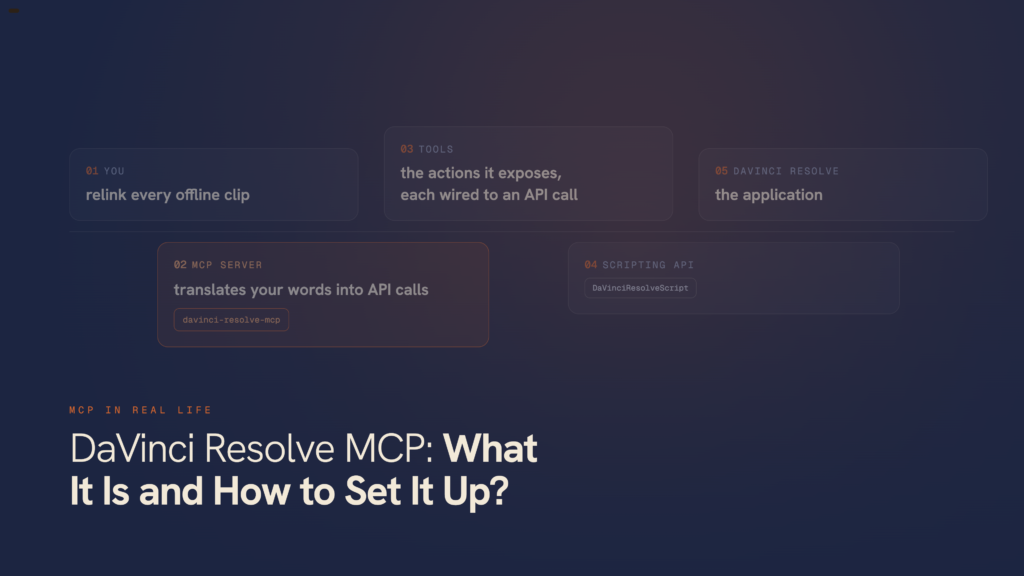
If you want the tighter version of this, the davinci-resolve-mcp project by Samuel Gursky wires Claude straight into a running Resolve over the Model Context Protocol and exposes the documented API as structured tools, which keeps the model inside operations that actually exist instead of ones it wishes existed. It is the starting point I built on.
The gotchas that show up in production
A few that cost real time:
fu.GetCurrentComp() comes back None until the Fusion page has been opened once in the session. Open it from the script first, then reach for the comp.
The first AddRenderJob() in a fresh project sometimes fails without a word. A short delay or a retry clears it.
Undocumented calls are quicksand. Blackmagic has switched them off without notice before, a beta once disabled the whole set, so anything you build on an undocumented method is fragile and needs testing on every update. Build on documented calls and treat the rest as borrowed time.
What it looks like on a real job
The best examples are the dull ones that used to eat a day. When a server reorg puts thousands of clips offline across dozens of timelines, folder names, filenames and the drive root all changed at once, a script reads the broken path Resolve still holds for each clip, finds the file again by matching the clip ID that survives in both the old and new names, and relinks clip by clip. Two days of hunting by hand comes back in minutes, and nothing on the timeline gets touched but the link.
Bin building is the same shape. Point a script at a fresh import, read each clip’s filename, split it into the parts your naming key already encodes, country, camera, shoot day, and it creates the bins and drops every clip where it belongs. Hundreds of clips sorted in seconds instead of an afternoon of dragging, and the structure comes out identical on every project, because a script doesn’t get bored halfway through.
Delivery is the other big one. On a broadcast documentary, one script queues the broadcast MXF, the streaming H.265, the archive ProRes and a promo cut, each with the right naming and output path, off a single command, and starts the render before you leave the desk.
None of these are clever. The one that took an afternoon to write pays itself back on the first project it touches, and then it just keeps working.
The API doesn’t automate the craft, and it was never meant to. What it takes off your hands is the repetitive, error-prone, administrative weight around the craft, relinking, bin building, delivery, project setup, metadata, markers, the parts where a script is steadier than a tired human at the end of a long day. Knowing exactly where that line falls is the whole reason to learn it, which is why the limits matter as much as the powers.
Updates
- 14 July 2026: Corrected the color-page section. An earlier version said you could read and write CDL values; you can only write them (
SetCDL), there is no getter to read a grade back off a node. Thanks to Nick in the comments for catching it. While I was in there I cut a few figures I couldn’t stand behind and added the Windows environment-variable paths.
How much of your week goes to work that doesn’t need you?
Relinking, renames, conform, the same delivery spec for the tenth time. FORGE learns how your studio works and takes them off the floor, so your hours go to the work that needs a person in the chair. First call is free – 30 minutes, questions, no pitch.


Excellent overview of the power of Python scripting for Resolve.
Thanks for the guidance.
Thanks, Jimmy. Glad you found it useful.
Resolve scripting is much deeper than most people expect, so I’m happy the guide helped.
This is AI generated slop and some of it is incorrect – ie/ you cant read CDL values directly.
Nick thanks for the comment. Article was written in cooperation with Claude Research.
Thanks for pointing it out. I will check it and correct if needed.
Great article. I had a hard time getting python scripting to work on my Windows 11 laptop with Resolve Studio. There is an omission in your article: you state that 3 environment variables must be installed on Windows, but give no details.
Claude AI was a wonderful help in telling me how to do this.
And in general: I plan on using Claude to create the python scripts for my. It comes with trial and error as all programming efforts, but it does give you a quick start. Worth while trying if you have little or no python experience. And certainly no knowledge of the DaVinci API.
Thank you Johan for pointing that out. I will be updating the article soon. Claude Code is great to work with DaVincin API but it needs to be controled and tested to not mess with any important project of yours.