How I Make Dailies?
This guide outlines a complete DaVinci Resolve dailies workflow – from media ingest to editorial hand-off. It covers project setup, timeline automation using Python scripts, color transforms for Canon and DJI footage, and best practices for exporting and archiving. Follow these steps to build a consistent and spec-compliant dailies pipeline ready for editorial and finishing.
1. Media Ingest & Backup
- Create a DaVinci Resolve project named according to the PROJECT LIST, appending the suffix _DAILIES.
- Bins inside _DAILIES project:
- 1. DAILIES
- 2. MEDIA
- In DaVinci Resolve, go to the Media Page and navigate to the mounted drive CRTN_POL_OCF1 on the NAS.
- Right-click the relevant folder and select “Add Folder and SubFolders into Media Pool (Create Bins)”.
- This automatically mirrors the folder structure into the Media Pool under bin 2. MEDIA.
2. Resolve Project Setup
- Use Project Settings preset: DavinciWGtoRec.709Gamma2.4 Settings
- Always set the project frame rate to 25 fps before importing media.
- Color Science: DaVinci YRGB
- Timeline: DaVinci Wide Gamut Intermediate
- Output: Rec.709 Gamma 2.4 (for editorial preview)
- Confirm Timeline resolution: 3840×2160 / 25 fps
3. Daily Timelines (Automated)
- create_dailies_timelines.py scans the 2. MEDIA bin and creates one timeline per shoot day based on date in filenames. It runs inside Resolve’s Python scripting environment.
- To run the script correctly:
- Ensure the bins 1. DAILIES DRT and 2. MEDIA exist.
- The script performs the following:
- Scans all clips in 2. MEDIA
- Groups clips by shoot date and builds UHD timelines named DAILIES_YYYYMMDD
- Sets Zoom to 0.890
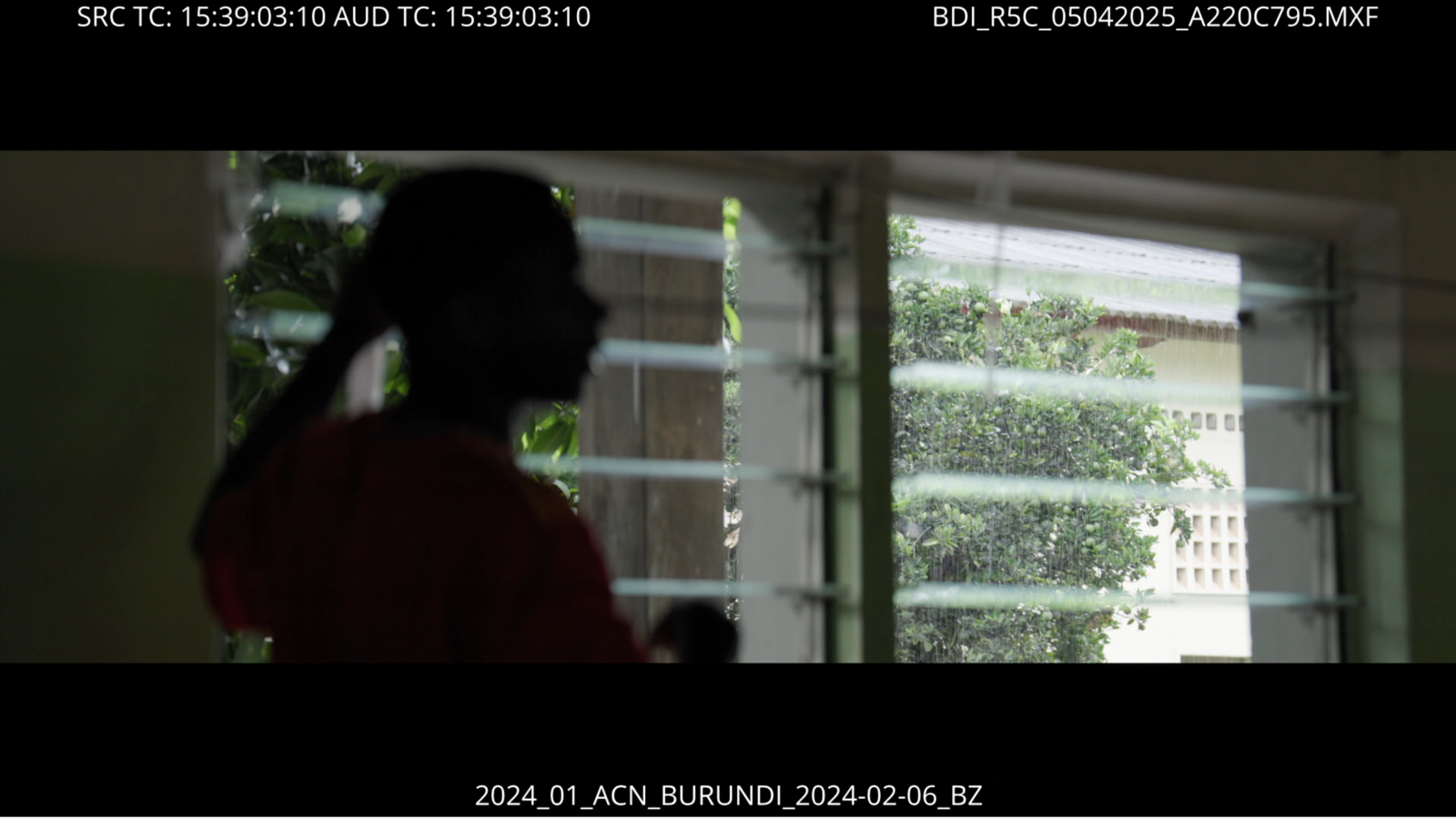
- Enables Data Burn-In using the DAILIES Metadata preset
4. Negative to Positive – Color Correction
- Create groups in Color Page:
- Group “R5C
- Group “DJI
- Color Space Transform
- Input Color Space: Canon Cinema Gamut / DJI D-Gamut
- Input Gamma: Canon Log 3 / DJI D-Log
- Output Color Space: Rec709
- Output Gamma: 2.4
5. Dailies Export
- In the Deliver page, use preset: “DAILIES_DNxHD1080p36_8bit_MXF”
- Export path: media/Dailies/South Sudan_01072025/ inside the project folder on crtn_pol_production
- File name format matches OCF for seamless conforming
6. Editorial Hand-Off
- Dailies are stored permanently on the NAS or any other storage.
- A copy is transferred to the editor’s SSD.
- Editing project may be created in DaVinci Resolve or Premiere Pro, depending on the editorial pipeline.
- Recommended project bin structure:
- 1. PRODUCTION
- 1. FILM_1
- 2. FILM_2
- 1. PRODUCTION
Right-click each Dailies folder and select: “Add Folder and SubFolders into Media Pool (Create Bins)”
Stay Connected
If you found this guide useful and want to stay connected, follow me on LinkedIn or visit wildlion.media/contact.
I regularly share insights on color grading, picture finishing, and post-production workflows.
If you’re working on a documentary or series and need expert color, conform, or delivery support – let’s talk.
How much of your week goes to work that doesn’t need you?
Relinking, renames, conform, the same delivery spec for the tenth time. FORGE learns how your studio works and takes them off the floor, so your hours go to the work that needs a person in the chair. First call is free – 30 minutes, questions, no pitch.